Introduction to PST Files and Outlook
Microsoft Outlook is a powerful tool for managing emails, calendars, and contacts. A key component of this software is the Personal Storage Table (PST) file, which stores all your data in one convenient place. While PST files offer organization and ease of access, they can also be a double-edged sword. As these files grow larger over time—often filled with years’ worth of emails—Outlook’s performance may start to dwindle.
Have you ever noticed that sending an email or searching through your inbox takes longer than it should? Large PST files are often the culprit behind sluggish response times and frustrating delays. Understanding how to manage these large files effectively can transform your experience with Outlook from tedious to seamless.
If you’ve been struggling with slowdowns due to bloated PSTs, you’re not alone. Many users face similar challenges as their storage needs expand. The good news is that there are ways to improve performance by splitting those hefty PST files into more manageable sizes! Throughout this article, we will explore why large PST files hinder productivity and provide practical solutions using various methods—including handy tools designed specifically for this task. Let’s dive deeper into how you can reclaim speed in Outlook while keeping your valuable data organized!
How Large PST Files Can Slow Down Outlook Performance
Large PST files can significantly hinder the performance of Outlook. When these files grow beyond a manageable size, they become cumbersome for the application to process. This slow processing manifests as lagging responses when opening emails or switching between folders.
The sheer volume of data in oversized PST files increases the time it takes for Outlook to search and retrieve information. Users may experience frustrating delays, especially during peak usage times.
Moreover, large PST files are more prone to corruption. A corrupted file can lead to not only lost emails but also increased downtime while attempting repairs. The larger the file, the higher the risk of encountering such issues.
Frequent crashes and unexpected errors often accompany bloated PSTs, further interrupting workflow and diminishing overall productivity within an organization.
The Negative Impact of Slowing Down Outlook on Productivity
A sluggish Outlook can disrupt your workflow significantly. When emails take ages to load, it interrupts the flow of communication. Important messages may get delayed, leading to missed deadlines and opportunities.
Frustration builds when you wait for the application to respond. This not only affects individual tasks but also impacts team collaboration. Team members might struggle to connect or share information promptly.
Moreover, constant crashes and lagging hinder focus and motivation. It becomes challenging to manage schedules effectively when appointments are buried under a sea of data.
The ripple effect extends beyond personal productivity as well. Companies feel the strain with decreased efficiency across departments, ultimately affecting overall performance metrics and goals.
Benefits of Splitting Large PST Files
Splitting large PST files offers numerous advantages for Outlook users. First, it enhances performance significantly. Smaller files mean quicker access and reduced load times.
Another benefit is improved organization. By dividing your data into manageable segments, you can categorize emails and folders more effectively. This creates a streamlined workspace that’s easier to navigate.
Additionally, splitting PST files reduces the risk of corruption. Large files are prone to damage when they exceed size limits, which can lead to permanent data loss.
Moreover, smaller PSTs simplify backups and migrations. You can back up or transfer chunks of data without overwhelming your system resources.
Having multiple smaller PST files allows for better recovery options in case of issues with one file while keeping the rest intact and accessible.
Methods for Splitting PST Files
When it comes to splitting PST files, several methods can help you regain control over your Outlook performance.
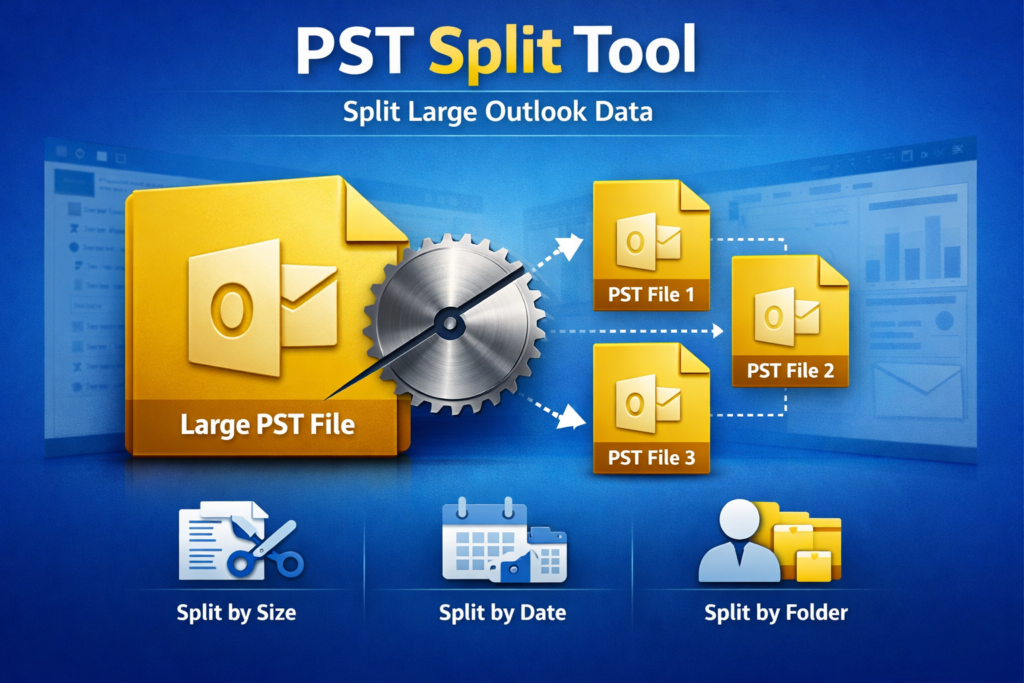
One popular approach is using a dedicated PST Split Tool. These applications are designed specifically for this purpose and offer user-friendly interfaces, making the process seamless even for non-technical users.
Another method involves manual techniques within Outlook itself. You can create new folders and drag emails from your large PST file into them. This way, you can manage the size effectively without relying on additional software.
For those comfortable with technical solutions, PowerShell scripts provide an advanced option to split PST files programmatically. However, this requires more expertise and caution to avoid data loss.
Each of these options caters to different needs and skill levels. Choose one that fits best with your workflow to ensure smooth email management in Outlook.
Best Practices for Managing PST Files to Avoid Performance Issues
To keep your Outlook running smoothly, managing PST files is essential. Regular maintenance can prevent performance hiccups.
Start by organizing your emails and archiving old messages. This helps reduce the size of your primary PST file significantly.
Consider utilizing a reliable PST split tool to break larger files into manageable chunks. A good Outlook PST splitter can simplify this process while ensuring data integrity.
Be mindful of how many attachments you store within emails, too. Large files can bloat your PST quickly, so save them externally when possible.
Establishing a routine for backing up and compacting your PST files will make a noticeable difference in performance over time. Aim to perform these tasks monthly or quarterly based on usage patterns to maintain an efficient system.
Conclusion and Tips for Maintaining a Fast and Efficient Outlook Experience
Maintaining a fast and efficient Outlook experience is essential for both personal and professional productivity. Start by regularly monitoring the size of your PST files to ensure they remain manageable. Use a reliable PST split tool when you notice your file approaching its limit.
Implementing best practices, such as archiving old emails, removing unnecessary attachments, and keeping folders organized, can also help prevent future performance issues. Additionally, consider using an Outlook PST splitter software to easily divide large files into smaller, more manageable sections.
Regularly backing up your data is crucial as well. This ensures that if something goes wrong during the splitting process or any other maintenance task, you’re protected against potential data loss.
By taking these steps and utilizing effective tools like PST split software regularly, you can keep Outlook running smoothly while improving your overall efficiency in managing emails and tasks. A proactive approach will not only enhance performance but also contribute significantly to maintaining a seamless workflow in your day-to-day activities.